SAFE-T Quick Setup Guide
What’s Inside Your SAFE-T System Kit
Before you begin, verify all components are included:
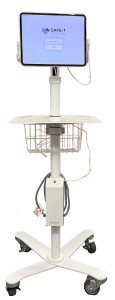
- 1 iPad Pro with adjustable stand
- 1 iPhone Pro with adjustable stand
- 2 Power adapters with USB-C cables
- Quick Setup Guide (this document)
- Hospital WiFi credentials sheet
Setup Overview
- Unbox and Position Devices
- Connect Power
- Connect to Hospital WiFi
- Login & Verify
STEP 1
Unbox and Position Devices
1.1 Remove devices from packaging
- Carefully remove the iPad and iPhone from their protective packaging. Keep all packaging materials until setup is complete.
[IMAGE: Devices being removed from box]
1.2 Attach devices to stands
- Secure the iPad to the larger stand
- Secure the iPhone to the smaller stand
- Ensure devices click securely into place and are stable
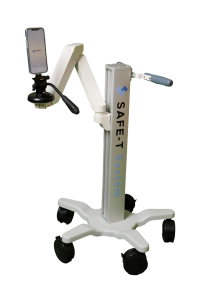
1.3 Position for optimal viewing
- Place stands on a flat, stable surface
- Adjust screen angles for comfortable viewing
- Position iPad as primary display, iPhone as camera view
STEP 2
Connect Power
2.1 Connect iPad to power
- Locate the USB-C power adapter labeled ‘iPad’
- Connect USB-C cable to the iPad’s charging port (bottom of device)
- Plug power adapter into a grounded electrical outlet
[IMAGE: USB-C cable connecting to iPad port with power indicator]
2.2 Connect iPhone to power
- Locate the USB-C power adapter labeled ‘iPhone’
- Connect USB-C cable to the iPhone’s charging port (bottom of device)
- Plug power adapter into a grounded electrical outlet
[IMAGE: Both devices connected to power with charging icons visible]
2.3 Verify power connection
- Press the power button on each device to wake them
- Look for charging icon in the top-right corner of each screen
- If no charging icon appears, check cable connections
STEP 3
Connect to Hospital WiFi
📋 You will need: Hospital WiFi network name (SSID) and password from your IT department
3.1 Connect iPad to WiFi
- On the iPad, tap Settings (gear icon)
- Tap Wi-Fi in the left menu
- Ensure Wi-Fi toggle is ON (green)
- Select your hospital’s WiFi network from the list
- Enter the WiFi password when prompted
- Tap Join
- Wait for checkmark to appear next to network name
[IMAGE: iPad Settings > WiFi screen showing hospital network selected]
3.2 Connect iPhone to WiFi
Repeat the same process on the iPhone:
- Settings > Wi-Fi > Select hospital network > Enter password > Join
3.3 Verify internet connectivity
- On each device, open Safari
- Navigate to any website (e.g., google.com)
- Confirm the page loads successfully
🔧 Troubleshooting: If connection fails, verify WiFi password with IT department. Some networks require device registration or certificate installation.